Gmail Not Filtering Emails: What to Do and Why It Happens (Full Guide)
Introduction
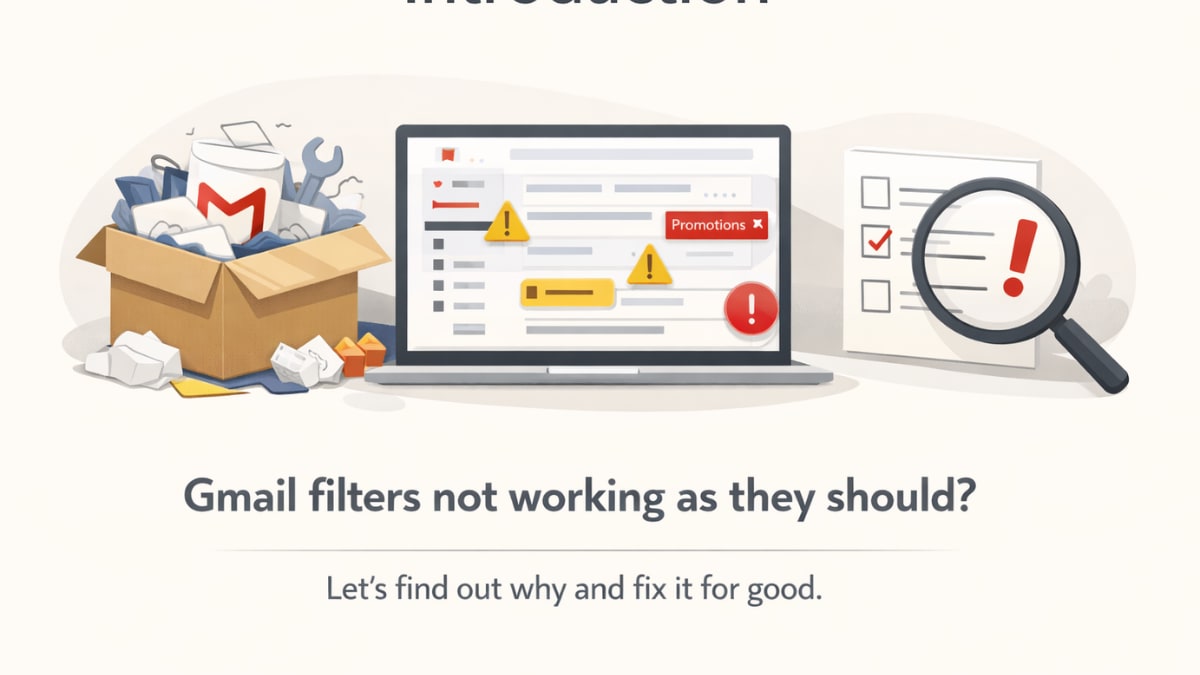
Many people think your Gmail inbox is like a messy garage where nothing stays where it belongs. You set up filters with high expectations: labels neatly applied, unwanted emails bypassing the inbox, and newsletters quietly archived. And yet, those same emails keep coming up front and -centre, as if they own the place. It's annoying, isn't it?
The thing is, Gmail filters do work, but only when everything is just right. And most of the time, something small is messing up the whole system. A checkbox was overlooked. There appears to be an issue with the category. There is a small mistake in the text. Gmail is strong, but it can be finicky.
We're going to go into great detail about why Gmail isn't filtering emails, what's really going on behind the scenes, and most importantly, how to fix it for good in this in-depth guide. No nonsense. No general advice. Like a friend explaining it to you over coffee, these are real-world solutions in plain English.
Let's tidy up that inbox.
How to Understand How Gmail Filters Work
It's helpful to know how Gmail really works before you try to improve anything. And believe me, Gmail doesn't think like a person; it thinks like an incredibly literal robot.
What Are Filters in Gmail?
You can set up Gmail filters that automatically tell Gmail what to do when an email meets certain conditions. For instance, "If an email comes from this sender, apply this label and skip the inbox." It seems easy, doesn't it? And it is, on the surface.
Gmail filters don't choose where emails go by themselves, though. They respond to exact matching. The filter activates only when the email exactly matches its conditions. You don't have to guess. Not "close enough".
Filters are like a bouncer at a club who only lets in certain people. You won't be able to get in if your name isn't spelt correctly.
How Gmail Chooses Where to Send Emails
When you get a new email, Gmail processes it in layers:
- Finding spam (using AI)
- Rules for the whole system
- Your filters
- You can create categories for your inbox, such as Primary, Promotions, etc.
- Markers of importance
Your filter might not get a chance to work if spam detection flags an email. That's one of the main reasons people think filters are malfunctioning when they aren't—similar to how users assume services are broken during large-scale disruptions like the Microsoft Outlook and Microsoft 365 outage when the issue is upstream.
Labels, Filters, and Categories
A lot of users get stuck here.
- Filters are rules.
- Labels are like folders, but better.
- Gmail's automatic categorisation algorithm is called 'Categories'.
Your filter might put the right label on the email, but Gmail might still put it in Promotions instead of Primary. That's not a failure; it's a disagreement.
Things People Get Wrong About Gmail Filters
Let's get rid of some false ideas:
- You have to instruct filters to apply retroactively.
- Filters don't stop spam detection from working.
- Filters don't automatically replace all categories.
- Filters do not consider case sensitivity, but they interpret content very literally.
Just knowing about these limits will make half of the frustration go away.
The Most Common Reasons Gmail Isn't Filtering Emails
Let's delve into the common causes of your filters' malfunction.
The filters are not set up right
This is the most common problem, and it's usually not on purpose. If you filter by "Subject" when the sender changes subject lines, it can break everything—much like how users misinterpret sudden behaviour changes during incidents such as the Verizon outage in the US.
For instance:
- You sort emails by subject: Invoice
- The sender uses Invoice #4587 or Your Invoice.
Boom. The filter doesn't work.
Gmail doesn't understand what you mean. It matches words.
Some filters may conflict with one another.
If you've been using Gmail for a long time, you probably have many filters on top of each other. Some of them might not agree with each other.
For example:
- Filter A: Don't send newsletters to your inbox
- Filter B: Always mark emails from a certain sender as important
If that sender sends out newsletters, Gmail gets confused, and the rule for higher priority wins.
Filters Not Used on Emails Already Sent
This one makes folks mad.
By default, filters only work on fresh emails that come in. You have to manually apply the filter to move old emails.
If you test a filter with old emails, it will look broken even though it isn't.
Gmail Categories Messing Up Filters
Promotions, social media, and updates are all useful and annoying at the same time.
Your filter might say "skip inbox,", but Gmail might still send the email to Promotions. What happened? The email technically skipped the primary inbox, but you can still see it.
Important or starred emails
Important emails get special consideration. Even if you set filters in Gmail, the AI may still decide that an email is too important to hide—just like automated prioritisation used in AI-driven systems such as Google VEO 3.1 for vertical videos from images.
Yes, Gmail can stop you from doing what you want. No, it doesn't ask for permission.
Filters Not Working Because of Small Changes in Text
This is the killer that goes unnoticed.
- Extra room
- Punctuation that is different
- Email addresses
- Changing sender names
If you misspell one character, your filter won't work.
How to Check and Fix Gmail Filters in Steps
Checking Out Current Filters
To get there:
Settings → See all settings → Blocked Addresses and Filters
Take your time with each filter. Think about this:
- Does this still matter?
- Is it too detailed?
- Is it covering up another filter?
It's a bad sign if you can't recall why a filter is there.
How to Edit a Filter the Right Way
To make a filter easier to use, click Edit.
Best way to do it:
- Whenever you can, filter by 'From'.
- Don't use subject-based filters unless you have to.
- Use keywords only if they are always the same.
- Less is better.
Removing filters that don't work or are out of date
Old filters are like food that has gone stale in the fridge. They don't work and could make things worse.
If a filter has not been effective for an extended period, it is advisable to replace it. You can always make it again cleanly.
Best Practice: Making Filters from Scratch
A new start is sometimes the quickest way to fix things.
Find an email that needs to be filtered, click the three dots, and then click "Filter messages like these.".
This makes sure that Gmail gets the right sender information.
Gmail filters don't work on mobile (Android and iOS)
This section explains why filters do not function on mobile apps.
The server processes all Gmail filters. The app just shows the result. You can't make or change filters correctly from the app.
If something looks wrong on your phone, it's probably not a filter problem; it's a sync delay.
What Causes Mobile Sync Delays
The software sometimes saves data from the inbox. The app may not have refreshed yet, but the filters may have already worked.
Quick fix:
- Pull down to get new information
- Or start the app again
What you can and can't do with the Gmail app
You can:
- Put labels on by hand
- Mark emails as important.
- Spam report
You can't:
- Make sophisticated filters
- Fix problems with the debug filter
Best Way to Get Around for Mobile Users
You should always manage filters from a desktop browser. Think of mobile as the screen, not the control panel.
Gmail filters aren't working for some senders
Gmail filters don't always work for all senders, which makes the problem seem random. One newsletter follows the rules, but another one doesn't. That's not bad luck; it usually has to do with how those emails are sent—especially during promotional campaigns like the OnePlus Freedom Sale discounts.
Mailing List Emails
Mailing lists are tricky. Even if emails look like they come from one person, they often use more than one address, domain, or reply-to field.
For instance:
- Sender: newsletter@brand.com
- The real sender is bounce.mailer.thirdparty.com, but it's hidden.
If your filter simply looks at the "From" visible address, Gmail might not always match it appropriately.
Questions and Answers (FAQs)
1. Why aren't my Gmail filters working all of a sudden?
Usually because of problems with categories, spam detection, or changes in how the sender acts.
2. Do Gmail filters stop working after a while?
Yes, especially if the sender's format or the content of the email changes.
3. Why do my emails still go to Promotions even though I have filters?
Unless you enforce primary categorisation, inbox tabs can override filters.
4. Do Gmail filters work on emails that have been forwarded?
Sometimes filters do not see the original sender; they see the person who forwarded the email.
5. Should I get rid of and make new Gmail filters?
Yes, often. Filters that haven't been used before work better than ones that have been patched.